Lesson Types
Overview
This article is for admins, team managers, and subject experts who create lessons. It explains each lesson type 5Mins supports, when to use it, and the file requirements, so you can pick the right format before you upload.
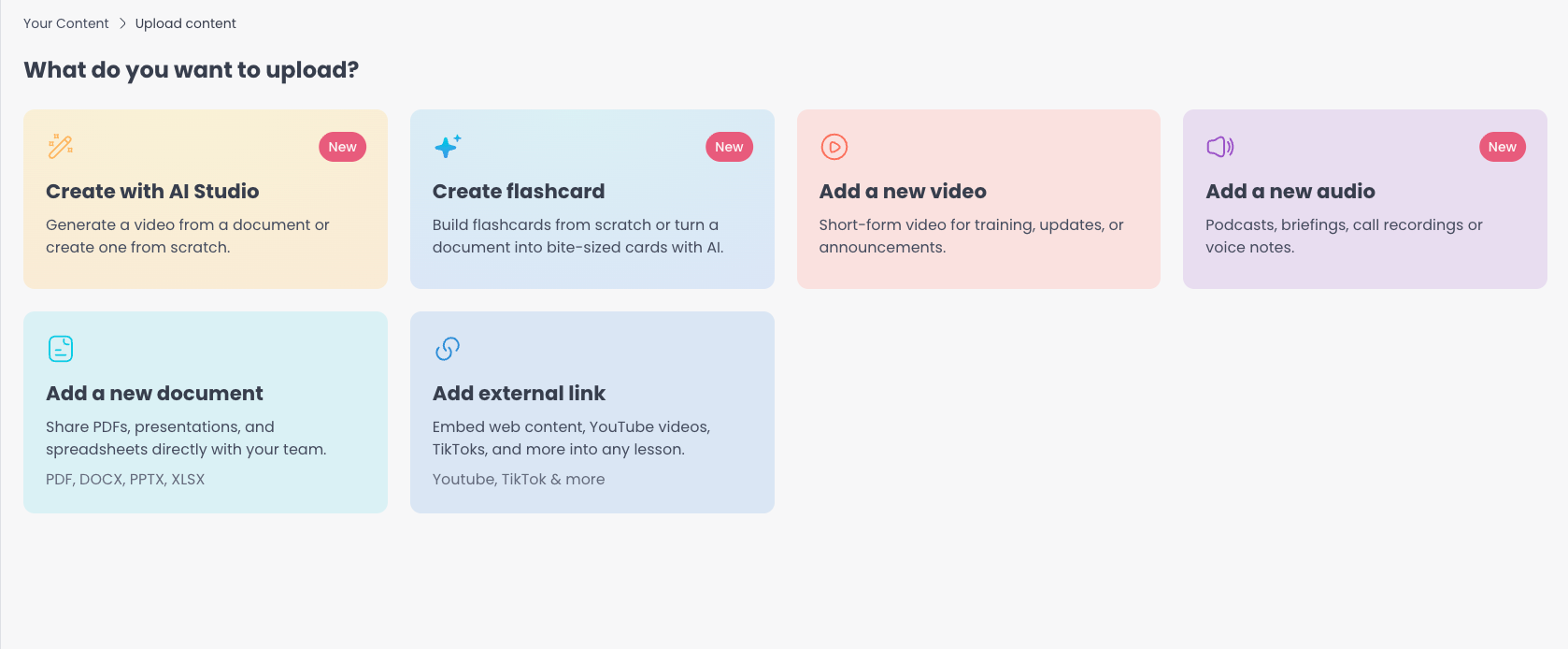
To create a lesson, go to Content & Courses > Your Content in the admin portal and select Add Content (or, in the Knowledge Hub, open Content Studio and select Create new lesson). Then choose one of these lesson types:
- Video (Add a new video) - Upload and share short training videos
- Audio (Add a new audio) - Upload podcasts, narration, and other audio
- Document (Add a new document) - Share PDFs, presentations, and spreadsheets, which are shown to learners as PDFs
- External link (Add external link) - Embed YouTube, TikTok, Loom, or Synthesia videos, or link to web articles
- Flashcards (Create flashcard) - Build interactive study cards, either from scratch or automatically from a file using the AI Transformer
For step-by-step upload instructions, see Upload Video / Audio / PDF lessons, External links as lessons, and Flashcards Lessons.
Each content type serves different learning objectives and can be combined to create comprehensive courses that accommodate various learning styles.
Video Lessons
Overview
Video lessons are ideal for visual learners and practical demonstrations. They're particularly effective for training content that benefits from visual explanation or step-by-step guidance.
When to Use Video Lessons:
- Software tutorials and demonstrations
- Process explanations
- Expert interviews
- Product showcases
- Interactive presentations
Video Guidelines
Technical Specifications:
- Supported Formats: .mp4, .mkv, .m4v, .mov
- Maximum File Size: 1GB per video
- Recommended Resolution: 720px x 1200px
- Vertical (portrait) videos with an aspect ratio of 9:16 are preferred.
- Horizontal videos will have padding on top and bottom to fit in portrait mode
Content Best Practices:
- Keep it short: Video lessons are designed for short-form content, so split long recordings into several focused lessons
- Clear Audio: Ensure narration is clear and well-paced
- Visual Quality: Use good lighting and stable footage
- Engagement: Include interactive elements or calls-to-action
- Accessibility: Speak clearly - 5Mins automatically generates English subtitles from your audio
Upload Process:
- Select Add a new video.
- Choose your video file or drag and drop it into the upload area.
- Add a name for the lesson.
- Select Publish Lesson. The video takes a couple of minutes to process.
Audio Lessons
Overview
Audio lessons are ideal for podcasts, recorded narration, interviews, and any content that works well as listen-only learning. Learners play audio lessons directly in the platform with the same progress tracking as video.
When to Use Audio Lessons:
- Podcast-style discussions and interviews
- Recorded narration and audiobooks
- On-the-go learning where a screen isn't needed
Technical Specifications:
- Supported Formats: .mp3, .wav, .m4a, .aac
- Maximum File Size: 250MB per audio file
- Audio Quality: Use a clear recording free from background noise, mic pops, or distortion
To upload, select Add a new audio, choose your file, add a name, and select Publish Lesson.
PDF Lessons
Overview
PDF lessons are perfect for sharing documents, guides, presentations, and reading materials that learners can reference and download.
When to Use PDF Lessons:
- Reference guides and manuals
- Reading assignments
- Worksheets and templates
- Compliance documents
PDF Guidelines
Technical Specifications:
- Supported Formats: PDF, PowerPoint (.ppt, .pptx), Word (.doc, .docx), and Excel (.xls, .xlsx). All non-PDF files are converted to PDF on upload.
- Maximum File Size: 25MB per document (under 10MB is recommended for best rendering performance)
- Page Limit: No strict limit, but consider learner experience
- Recommended Page Size: 1080x1920 (portrait, 9:16)
Formatting Recommendations:
- Headers: Use clear, descriptive headers and subheaders
- Bullet Points: Break up dense text with bullet points and lists
- Visual Elements: Include relevant images, diagrams, and charts
- White Space: Use adequate spacing for better readability
- Consistency: Maintain consistent formatting throughout
Upload Process:
- Select Add a new document.
- Choose your file (PDF, PowerPoint, Word, or Excel).
- Add a name for the lesson.
- Select Publish Lesson.
External Links
Overview
External links allow you to embed web content directly into your training, making it seamless for learners to access external resources without leaving your course environment.
Common External Link Sources:
Videos: YouTube, TikTok, Loom, and Synthesia
- Educational content and tutorials
- Expert talks and presentations
- Product demonstrations
- Webinar recordings
Blogs and Articles:
- Industry insights and trends
- How-to guides and tutorials
- Case studies and research
- Thought leadership content
When you add an external link, choose whether it is a Video or an Article, then paste the URL. For full steps, see External links as lessons.
Please note - For Synthesia, select the Published button and then Copy video link.
For Loom, select the Share button and then Copy Link.
Flashcards
Overview
Flashcards are their own lesson type, separate from videos and PDFs. Each flashcard lesson is a set of interactive study cards with a rich-text title and summary, and you can add a theme, a background image, or a foreground image to each card. You can build flashcards from scratch in the editor, or use the AI Transformer to turn an existing document, video, or audio file into a flashcard lesson automatically. Learners swipe or click through the card set, and the lesson is marked complete once they reach the end.
For the full walkthrough (building from scratch, rich-text formatting, images, backgrounds, and themes), see Flashcards Lessons: https://help.5mins.ai/articles/7616262-flashcards-lessons
AI Transformer
What is AI Transformer?
The AI Transformer is one of the two ways to create a flashcard lesson. Instead of building cards from scratch, you upload existing content (a PDF, Word, PowerPoint, video, or audio file) and the AI Transformer drafts a set of flashcards for you. You then review and edit every card in the flashcard editor before publishing.
The AI Transformer accepts PDF, Word (.docx), and PowerPoint (.pptx) files up to 25MB, video files up to 1GB, and audio files up to 100MB. For how flashcards work once they're drafted (rich text, images, backgrounds, and themes), see Flashcards Lessons: https://help.5mins.ai/articles/7616262-flashcards-lessons
Best use cases
- Converting lengthy policy documents into digestible chunks
- Creating quick review sessions
- Breaking down complex topics into manageable chunks
- Generating interactive content from existing resources
Frequently Asked Questions (FAQs)
General Questions
Can I combine different lesson types in a course?
Yes. Mixing different content types creates more engaging and comprehensive learning experiences. Consider using videos for demonstrations, PDFs for reference materials, and external links for additional resources.
Is there a limit to how many lessons I can add?
There's no strict limit on the number of lessons per course. However, we recommend organising content logically and considering the overall course duration for optimal learner engagement.
Can learners download the content?
Downloads are off by default. When an admin turns on downloads for your account, learners get a Download button on video, audio, and PDF lessons that your organisation has uploaded. Curated 5Mins library content can never be downloaded, and external links and flashcards are not downloadable.
AI Transformer Questions
What file types does AI Transformer support?
The AI Transformer accepts PDF, Word (.docx), and PowerPoint (.pptx) files up to 25MB, video files up to 1GB, and audio files up to 100MB. Older .doc and .ppt files and Excel spreadsheets are not supported.
How accurate is the AI-generated content?
The AI Transformer is highly accurate but should be reviewed before publishing. You can edit and customise all generated flashcards to ensure they meet your specific requirements.
Can I edit the flashcards after they're generated?
Yes, you have full control to edit, add, or remove flashcards after the AI generates them. You can also add images to the flashcards.
Video Questions
Why is my video taking a long time to upload?
Upload time depends on file size and internet speed. Videos over 100MB may take several minutes. Consider compressing large files before uploading.
Can I add captions to my videos?
You don't need to. After you upload a video or audio lesson, 5Mins automatically transcribes it and adds English subtitles, which learners can turn on from the Subtitles option in the player. You can't upload your own caption file - contact support@5mins.ai if you need help with subtitles.
What should I do if my video format isn't supported?
Convert your video to MP4 format using free tools like HandBrake or online converters before uploading.
PDF Questions
Why does my PDF look different after uploading?
Some formatting may change during upload. Preview your PDF after uploading and consider optimising the original file if needed.
Are password-protected PDFs supported?
No, password-protected PDFs are not supported. Remove the password before uploading.
External Link Questions
What happens if an external link breaks?
Learners will see an error message. Regularly check your external links and update them as needed. Consider adding backup content for critical resources.
Can I track if learners have visited external links?
Learners can complete external links by marking the links as completed. You can see this in course reports and in Learning Records.
Do external links work on mobile devices?
Most external links work on mobile, but some content may not be optimised for mobile viewing.
Troubleshooting Common Issues
Upload Problems:
- File too large: Compress your file or break it into smaller segments
- Unsupported format: Convert to a supported format before uploading
- Slow upload: Check your internet connection and try uploading again
Display Issues:
- Content not loading: Clear browser cache and try again
- External links not working: Verify the URL is correct and the content is publicly accessible
Getting Help
If you encounter issues not covered in this guide:
- Check our Knowledge Base: Search for specific error messages or issues
- Contact Support: Email us at support@5mins.ai with detailed information about your issue
- Use Live Chat: Access our help chat feature within the platform
Was this helpful?
Still need help? Ask the team