Pass Score for Courses
1. What is the Pass Score feature?
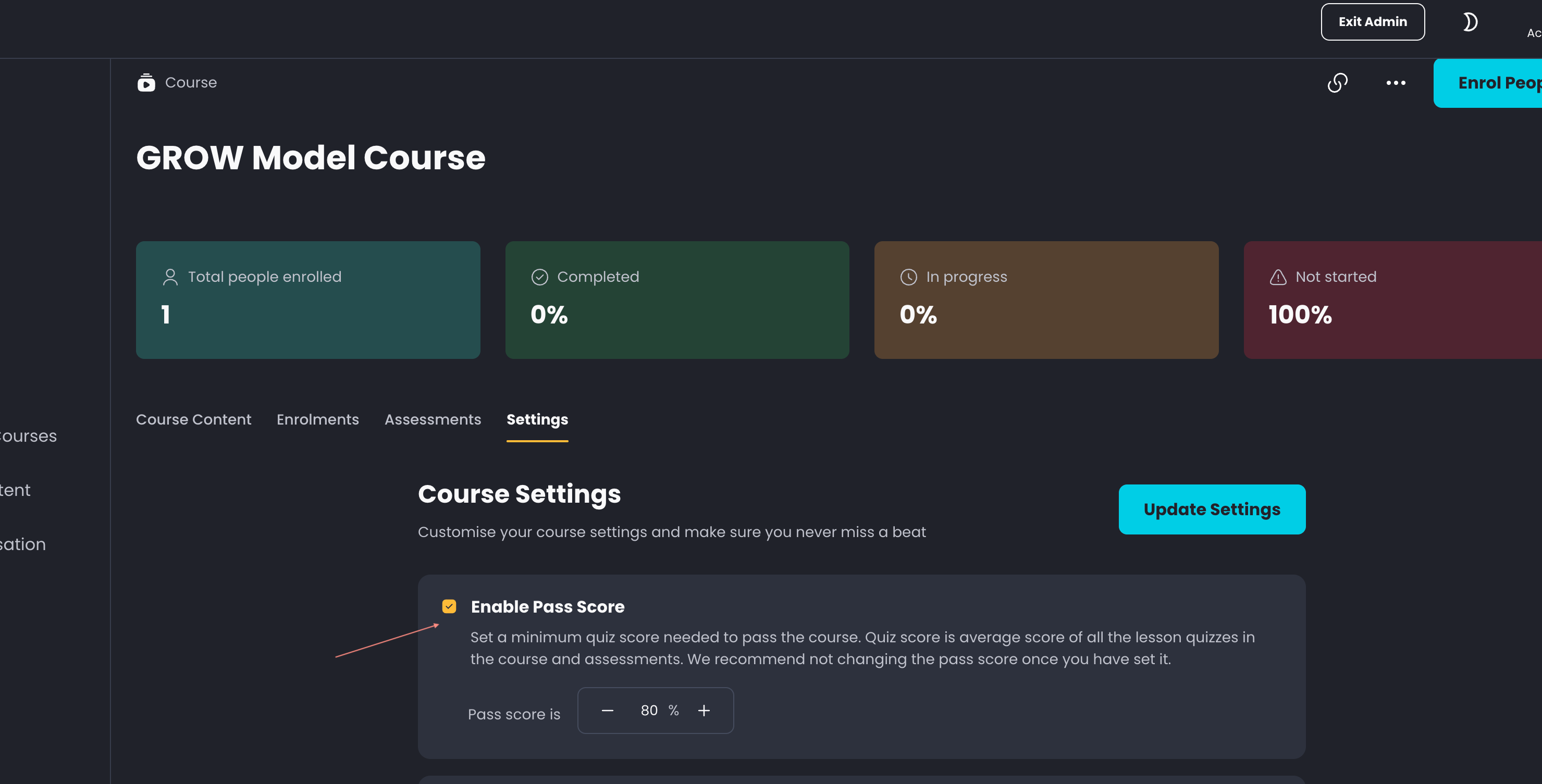
Pass Score is a course setting that lets admins define the minimum score learners must achieve to pass a course and earn its certificate.
2. Where can an admin set the Pass Score for a Course?
You can set the Pass Score in the Settings tab of a Course. This applies to both 5Mins courses and your organisation's own courses. It is generally advised not to change Pass Score too frequently as it affects enrolled learners in the course.
3. What is Score and how is it calculated?
The Pass Score is based on the average Score of all assessments within the Course. Score is the average score of all the quiz scores in:
Lesson quizzes: questions displayed at the end of a lesson
Course Assessments: Situational tests and Multiple choice questions
Please note: Surveys (polls), Short text questions, and Exercises are not counted toward the Score.
4. How does the Pass Score impact certificate eligibility?
A Course certificate is awarded when:
The learner completes 100% of the Course
The learner’s quiz score meets or exceeds the Pass Score (if one is set)
If a Pass Score is set and the learner does not meet it, they will not receive a certificate even with 100% progress.
5. Where can those Course Certificates be found?
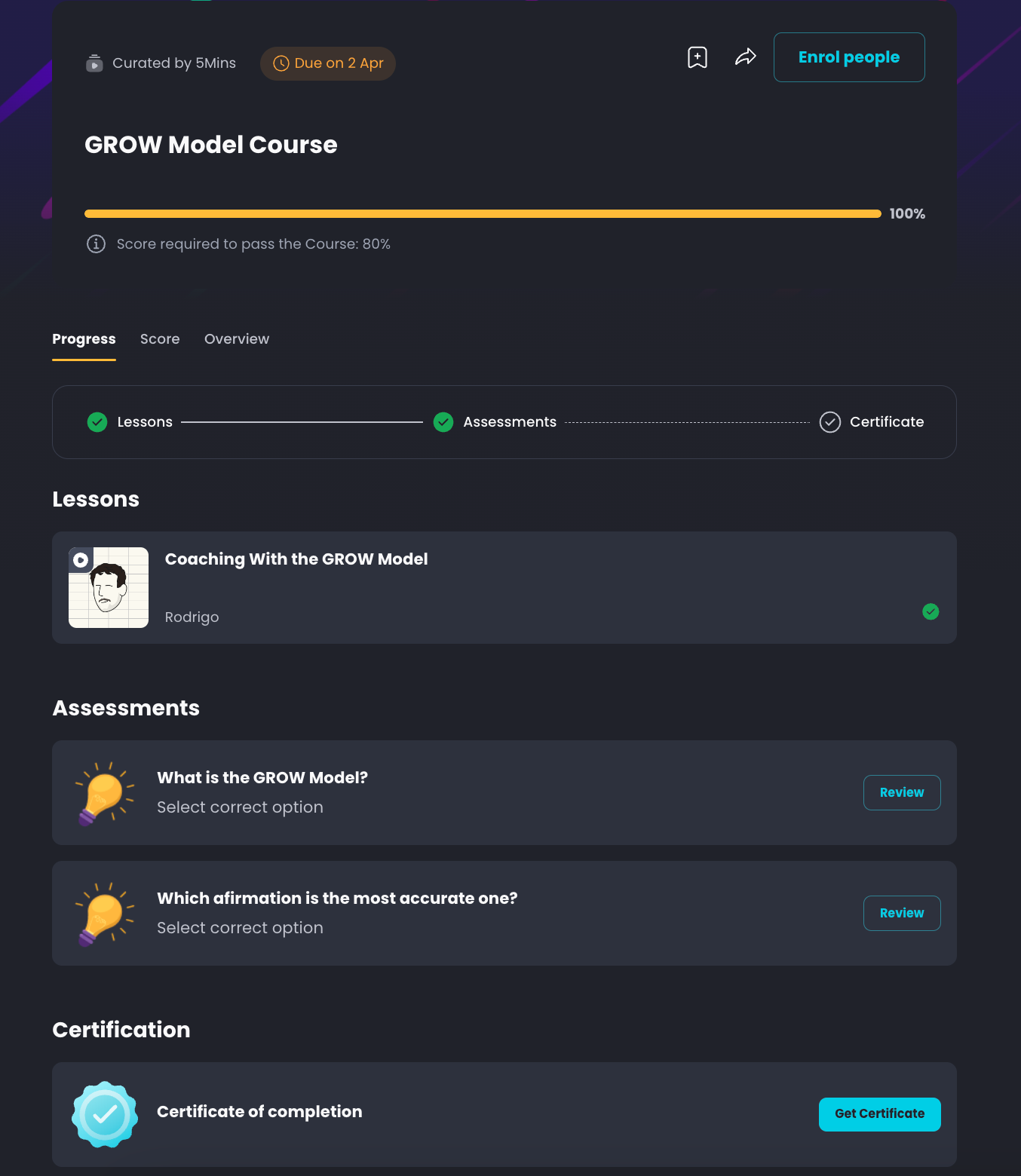
Learners may find their Certificates in:
The respective course page
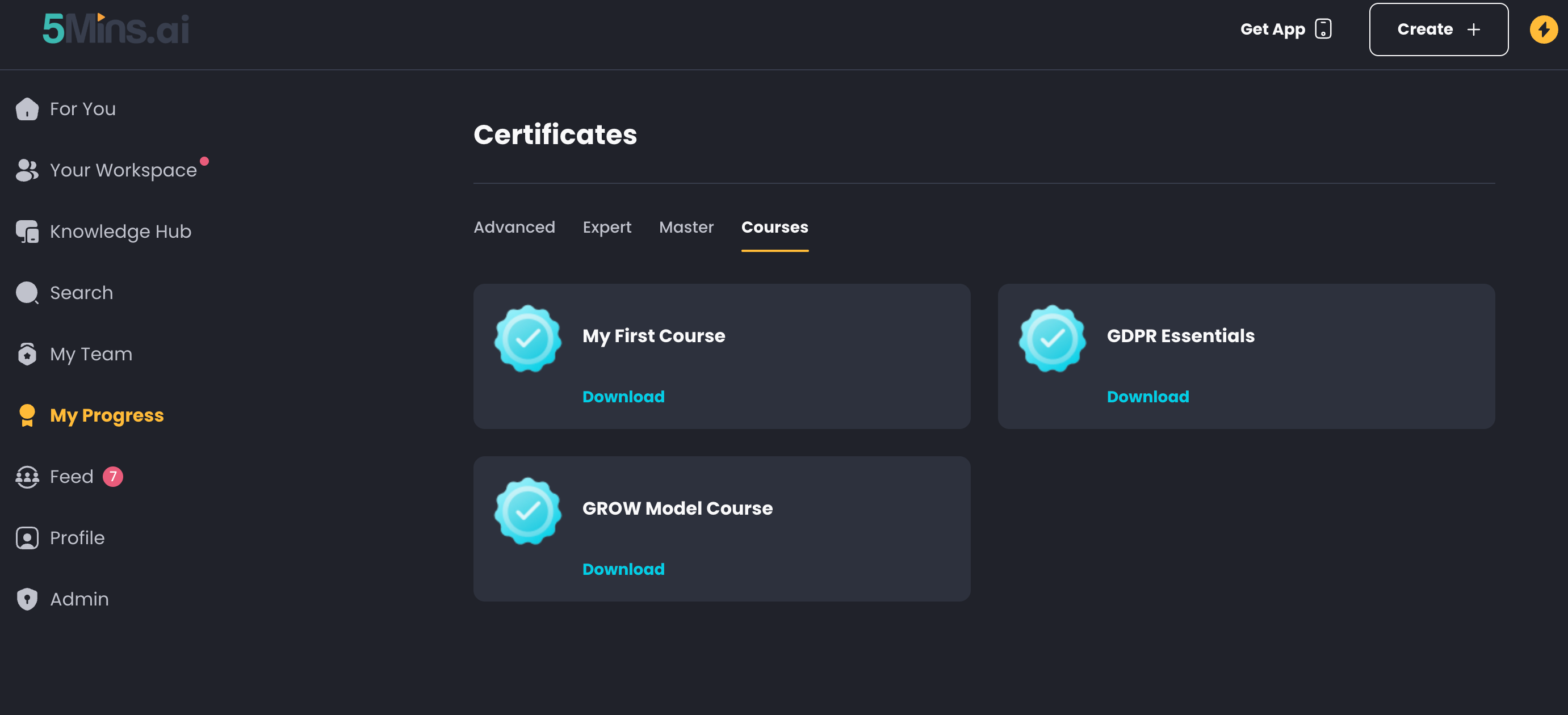
Once obtained, they also can be found on the My Progress > Certificates page
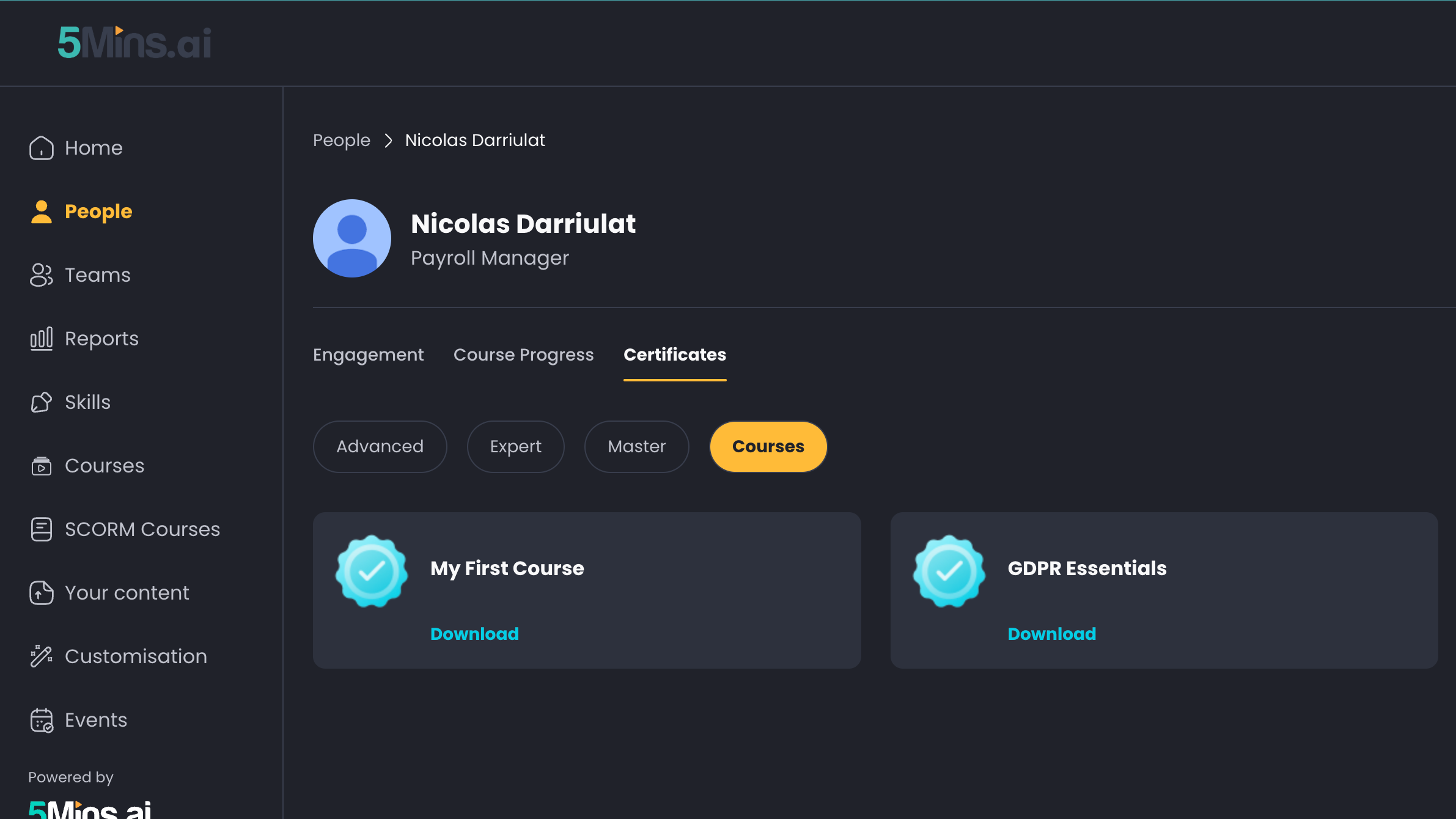
In the case of Admins, they can find each user's certificates on the Admin > People page > [User name]
6. What happens if a Course does not have a Pass Score set?
If a Course has no Pass Score, learners will earn a course certificate as long as they complete 100% of the Course, regardless of their assessment scores.
7. What new information is displayed to learners on the Course page?
Learners will now see:
Pass Score Information: The required score for passing.
Result Card in the Score Section: Whether they have passed or not.
8. How can an admin track learner performance based on the Pass Score?
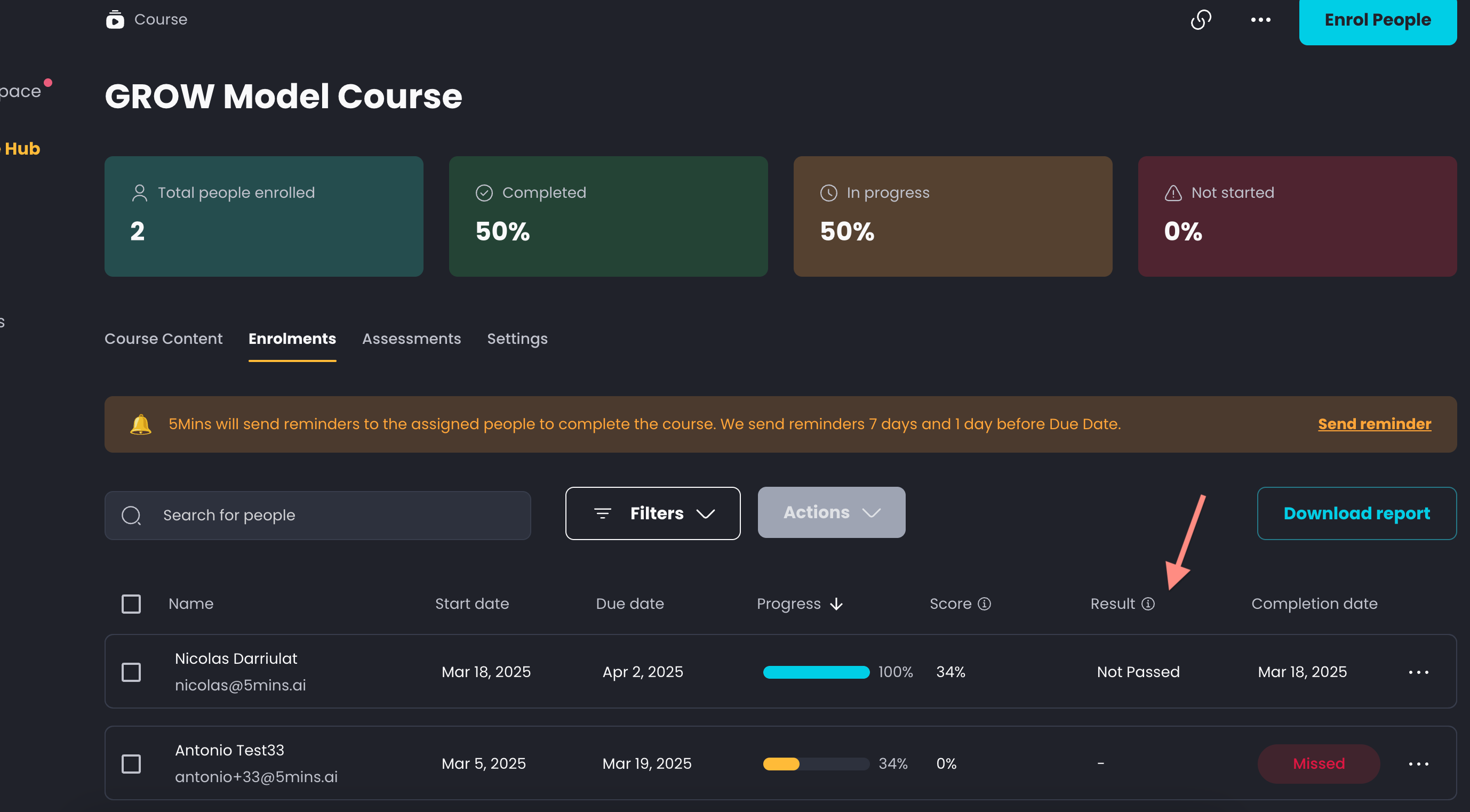
Each learner's outcome appears in the Status column of the Enrolments tab of the Course page. When a Pass Score is set, the Status column can show:
Completed → If the learner met the required Pass Score & completed 100% progress
Failed → If the learner completed 100% but did not meet the Pass Score
Retaking quizzes → If the learner has completed all content and is using their remaining quiz attempts to reach the Pass Score
Note: The Failed and Retaking quizzes statuses only appear if a Pass Score is set for the Course.
9. How does a learner know if they failed / passed the course?
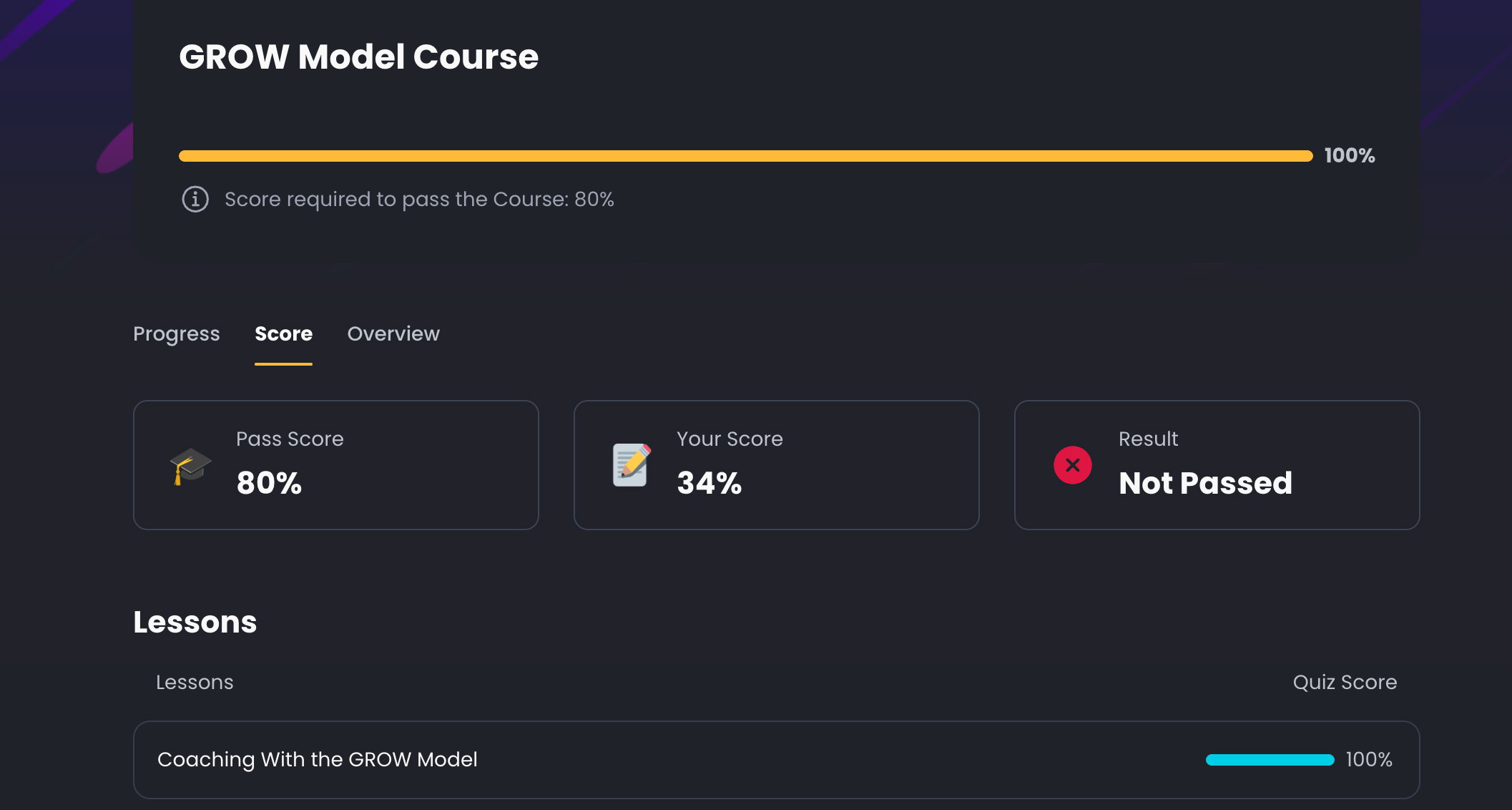
On the Course’s page > Score tab, learners may find the following information:
Course Pass Score
Their total Score
Result (either Passed, Not Passed, “—”)
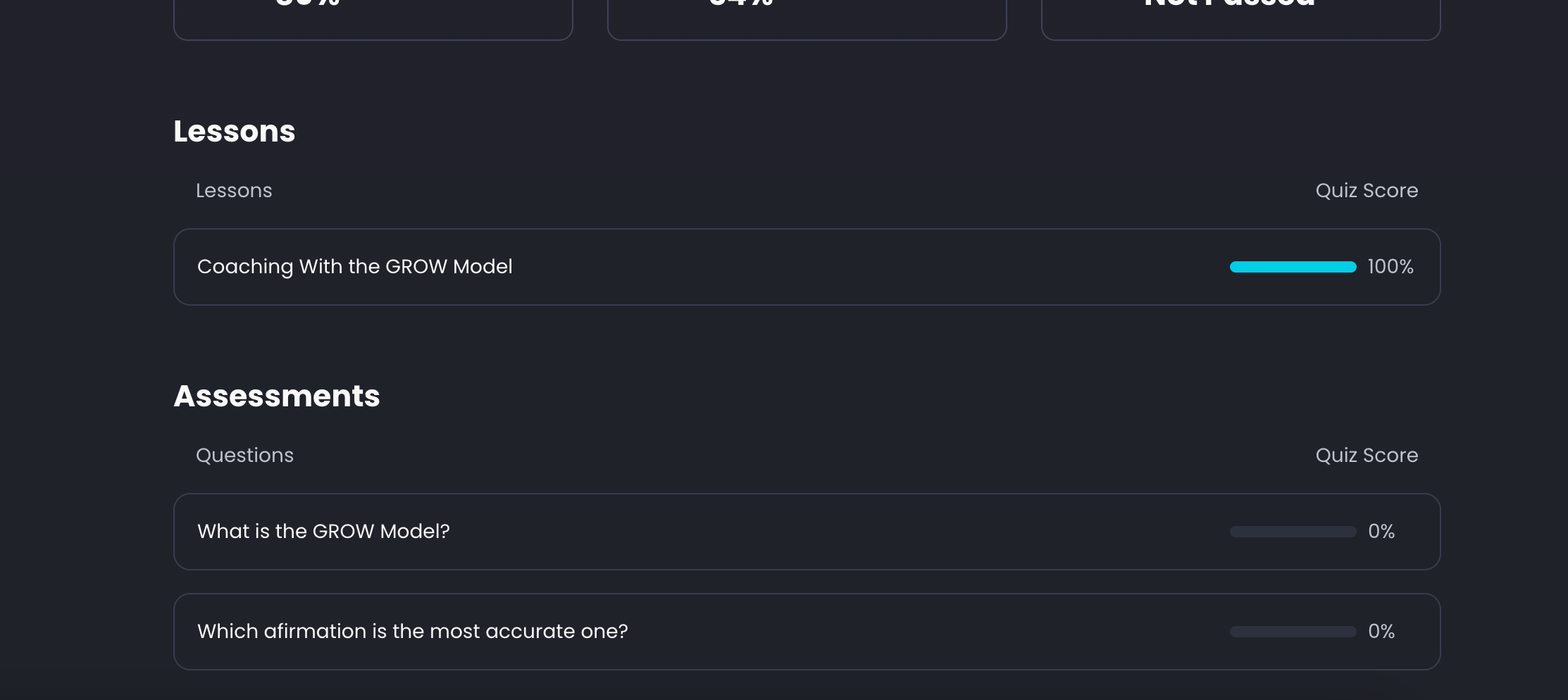
In the same section, a list of each quiz and assessment, along with the user's score for each, can be found:
10. How many attempts does a learner get to pass the course?
This depends on the course's re-attempts setting. When you enable a Pass Score, the "Allow re-attempts for quizzes and assessments" option is turned on automatically, giving learners 2 attempts by default (you can set this between 2 and 3). If you switch this option off, learners get only a single attempt. You can find this setting nested under Enable Pass Score in the Course's Settings tab. Under the same setting you can also switch on Auto-reset on failure: when a learner finishes the course without reaching the pass score and has no attempts left, their progress is reset automatically so they can try again. Their start date, due date, and repeat rules do not change. For more detail, see Quizzes Re-take.
11. What happens if a learner fails the Course? Can admins re-enrol them?
If re-attempts are enabled (see Q10), the learner can simply retry the assessment until their attempts are used up - no admin action is needed. If Auto-reset on failure is on, their progress is reset automatically once their attempts run out. Otherwise, an admin can give the learner a fresh start at any time.
To give a learner another attempt:
Open the course page and go to the Enrolments tab
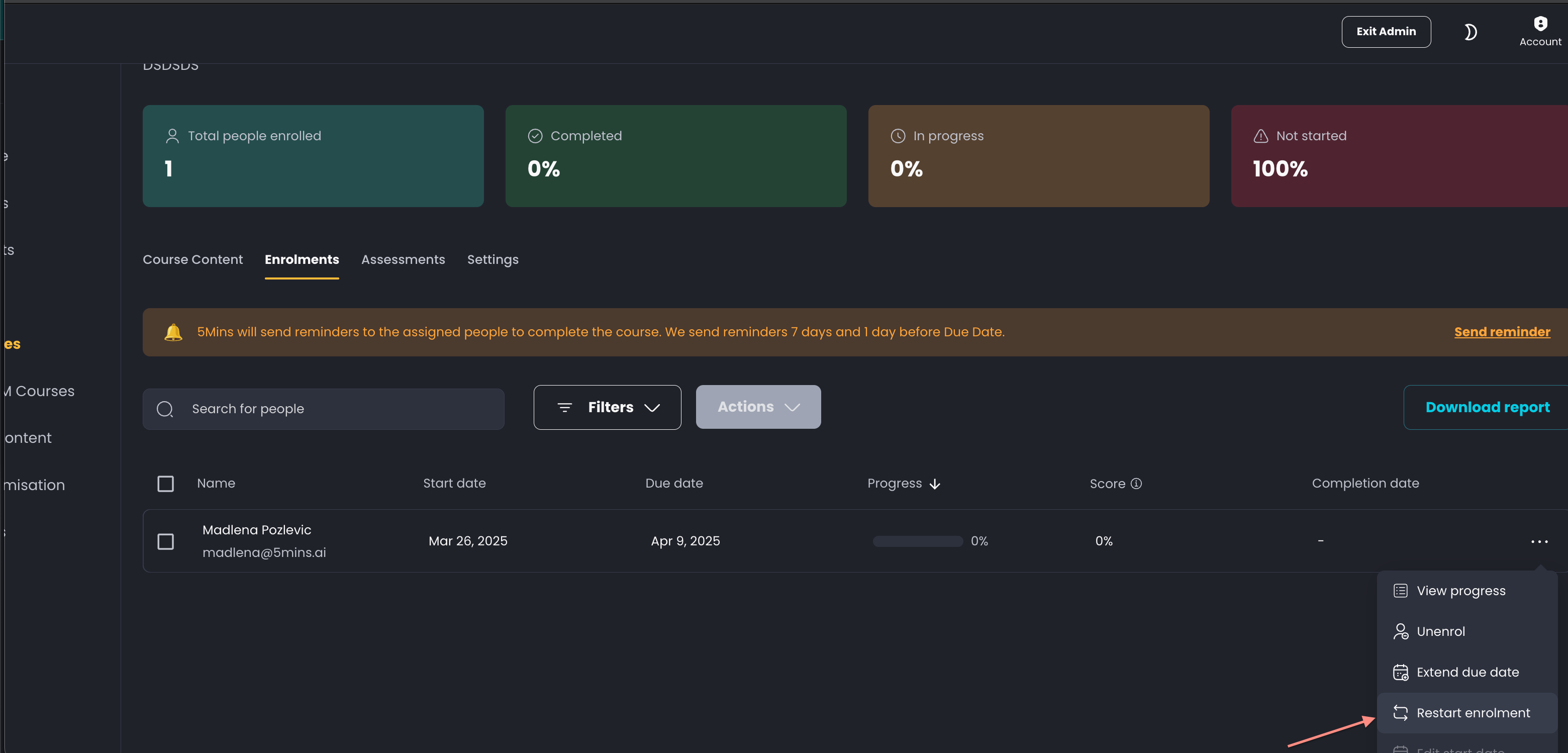
Click the three dots menu next to the learner's name
Choose one of these options:
Reset progress - progress goes back to 0 and the learner starts a new attempt. Their current attempt is saved to their history, and their start date, due date, and recurrence stay the same.
Restart enrolment - replaces the learner's enrolment with a fresh one, where you can set new start and due dates.
Feel free to share more feedback at nicolas@5mins.ai
Was this helpful?
Still need help? Ask the team