Create course assessments with AI
Draft assessments from your course lessons with Create With AI, then review and save each one.
Create With AI
Create With AI drafts a set of assessments from the lessons already in your course. You review each question, edit it if you need to, and save the ones you want. Nothing is added to your course until you save it.
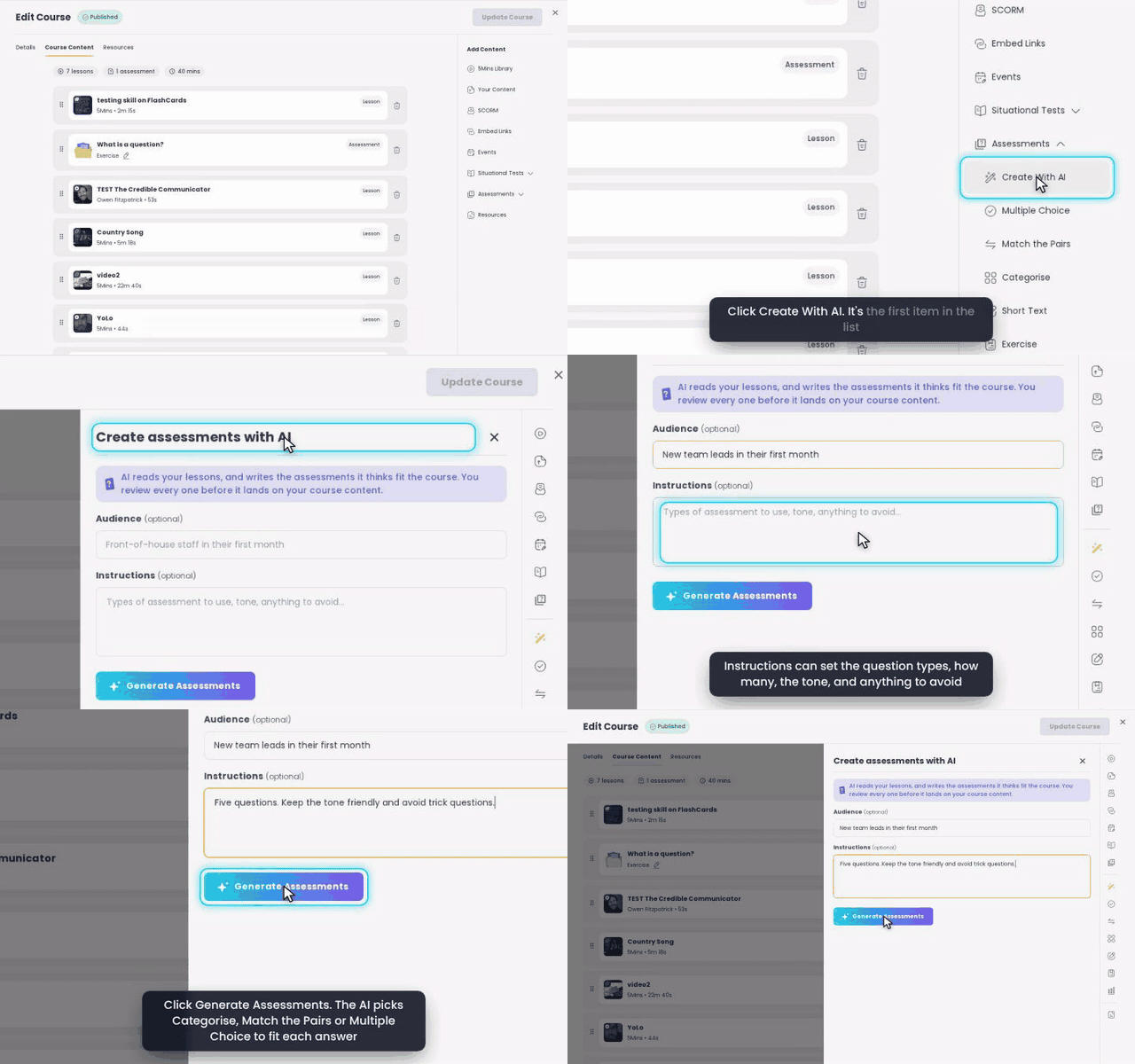
🎬 Watch this as a short narrated video
Steps shown in this video
- Open the course builder for a course that has lessons, on the Course Content tab
- In the Add Content panel, open Assessments
- Click Create With AI. It's the first item in the list
- AI reads your lessons' transcripts and drafts assessments. You review every one before it's added
- Optionally, say who the course is for in Audience
- Instructions can set the question types, how many, the tone, and anything to avoid
- Click Generate Assessments. The AI picks Categorise, Match the Pairs or Multiple Choice to fit each answer
- Then review the drafts one at a time and Save or Discard each. Nothing is added to your course until you save
✨ What it does
- Reads the transcripts of the lessons in your course and writes standalone assessments about what those lessons teach.
- Picks the question type that fits each answer: Categorise, Match the Pairs or Multiple Choice.
- Gives you every draft in the normal assessment editor, so you can change it before saving.
It doesn't use links, resources or other content in the course. It only uses lessons.
👤 Who can use it
- Admins
- Managers and Subject Experts in the Knowledge Hub
It's the same access as adding an assessment by hand. If your organisation has AI generation turned off, Create With AI doesn't appear.
🛠️ How to create assessments with AI
- Open the course builder: create a new course, or edit an existing one.
- In the Add Content panel, open Assessments and click Create With AI. It's the first item in the list.
- If you like, fill in the two optional fields:
- Audience: who the course is for, e.g. Front-of-house staff in their first month.
- Instructions: the types of assessment to use, the tone, and anything to avoid.
- Click Generate Assessments.
- While the AI works you'll see its progress: Reading the source transcripts, then Creating assessments, then All done. Your assessments are ready. Each question appears below the progress steps as it's written.
- Review the drafts one at a time. The header shows Question 1/N and a chip with the question type. For each draft:
- Edit it in the usual form, then click Save to add it to your course content (Assessment saved), or
- Click Discard to drop it (Assessment discarded).
- For Categorise and Match the Pairs, click Preview to try the question as a learner would.
- After the last question the panel closes and you're taken back to the course content. Your saved questions are listed there.
💡 The course has no lessons yet? The panel shows Add lessons to get started. Click Add Lessons to open the 5Mins Library, add some lessons, then come back.
🧠 How the AI chooses questions
- Type follows the answer. Content that sorts into groups becomes Categorise, content with clear one-to-one partners becomes Match the Pairs, and anything else becomes Multiple Choice with an explanation.
- Poll and Short Text are used only when your Instructions ask for them.
- How many: about one question per lesson, between 3 and 8. If your Instructions give a number, the AI aims for that number, up to 8.
- Grounded in your lessons: drafts that the lessons don't support are removed before you see them.
⚠️ Good to know
- Closing while it's generating asks "Exit while AI is generating assessments?". If you choose Exit, generation stops and nothing is added. Keep Generating carries on.
- Leaving with unsaved drafts, by closing the panel or picking another Add Content item, asks whether to discard them. Discarded drafts can't be recovered.
- Fewer assessments than expected: if the AI writes fewer questions than it aimed for, a note says so. Review those, then generate again for more.
- If it fails you'll see Your assessments weren't created. Your Audience and Instructions are kept, so click Generate Assessments to try again.
- Daily limit: AI generation has a daily limit for your organisation. Once you reach it, Generate Assessments is disabled until the next day.
❓ FAQ
Does this create lesson quizzes too?No. This creates course assessments only. Lesson quizzes have their own flow. See Lesson Quizzes.
Can I edit an AI question after saving it?Yes. A saved question is a normal assessment, so you can edit it from the course content like any other.
Will it read my SCORM files, links or resources?No. It only uses the transcripts of the lessons in the course.
Can I ask for specific question types?Yes. Name them in Instructions, e.g. "Only multiple choice" or "Include one poll".
What happens to my content?See Privacy Policy for AI Features on 5Mins.
🔗 Related articles
- Assessments: every assessment type and how to build one by hand
- Creating a Course
- Situational Tests: AI-drafted scenario tests, also in the Add Content panel
- Privacy Policy for AI Features on 5Mins
Was this helpful?
Still need help? Ask the team